| 4.
She
looks lovely! Now that we have a clean doll with a transparent
background - let's give her some changing text. When doing animations
- it's a simple process of the same picture changing a little each
time. Also remember, Less is GOOD! It's not how many frames you
make - but what you do with the frames you have!.
There are *2* ways to work with Text. You can
just type the text on the doll and be done.. OR you can use a
"fill" way so you can add text to ANY doll you have -
including larger animations and existing dolls... It's Very simple.
Let's choose the second method - because you'll find
it useful to add to existing dolls you may have in your collection
now. Click on your doll and then click on Image it will show
many options. We are looking for the "canvas
size". Click on Canvas Size. We don't want to change
- but want to see what it currently is. I'm showing my doll to
be Canvas Size 113 by 145. Click cancel because we don't
want to change it.
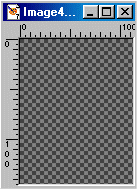
Now let's open up a new box and put it to be
"transparent background" and the canvas size that you were
showing which should be 113 by 145. It will make a new blank box
the exact same size of your doll.

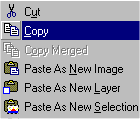
Now in that new blank box let's type some letters in
it. Choose a color you like for both boxes and then Use your
text option  .
I used the Move tool .
I used the Move tool  to move the letters to be in a spot I think will work nicely. I'm only
eyeballing it. But with this "fill" way you CAN
eyeball it!
to move the letters to be in a spot I think will work nicely. I'm only
eyeballing it. But with this "fill" way you CAN
eyeball it!
Let's test it out!!!

Click on the triangle below "styles" near
your paint and it will show options to paint with. We are
looking for "pattern"
If you Click pattern it will pop up a default
patter. Now click that pattern and it will give a
"list" of current patterns to choose from. On that
list you will find ALL the windows you currently have up in PSP.
Choose your letters as a "pattern"


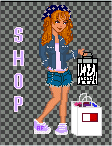
Now we can "fill"  this pattern on ANY picture we have. Including our DOLL! Let's
try it!!
this pattern on ANY picture we have. Including our DOLL! Let's
try it!!
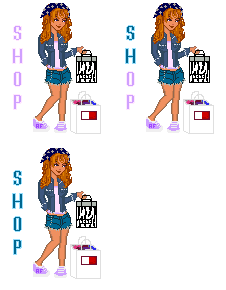
We are going to make a 3 Frame Animation ... So we
will need to copy her 2 more times. But because we want the box to
match we are going to just click on the same doll and use
"save as" and add a number to it..
"save as" Shoppingdoll2 - "save
as" Shoppingdoll3 (or whatever name you have. When that is
done... let's change the colors of the words.
Go back to your box with your words in it and using
your Magic Wand  click on one of the letters. Again you will ants dancing around
it.
click on one of the letters. Again you will ants dancing around
it.
We are going to fill the letters with another
color.. but only some of them... How about a blue from her
outfit. Use your "eye dropper"  to collect a blue - or you can pick any blue you wish. And now fill
and paint
to collect a blue - or you can pick any blue you wish. And now fill
and paint  in half of the letters with this "blue" color. We will
now make this New Letter Box as a new texture. Follow the
previous steps and let's fill in your second Save As Doll
in half of the letters with this "blue" color. We will
now make this New Letter Box as a new texture. Follow the
previous steps and let's fill in your second Save As Doll
Now let's repeat the steps by filling in the rest of
the Letters with Blue and "fill" that onto your 3rd
doll.
When you are finished - she will look like
she does on the Right.
So now that you have 3 Dolls of the same size
with little differences for each one - time to put them together to
*see* the magic!
|









 for ALL of my creations. If you have another paint program, that is
fine, however, my instructions will only be for PSP. You can go to
the Jasc Web site here:
for ALL of my creations. If you have another paint program, that is
fine, however, my instructions will only be for PSP. You can go to
the Jasc Web site here:  to use today. You can
find a link to this incredible site on my "links"
page.
to use today. You can
find a link to this incredible site on my "links"
page. 
 for details. Remember, you can always Undo
  anything your not happy with. Don't forget to save!







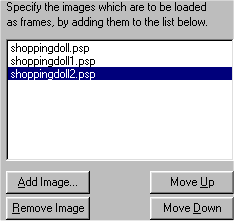

 the animation and see how she is! It should be very clean when and the
letters not jumping at all.
the animation and see how she is! It should be very clean when and the
letters not jumping at all.